my-files-usability — research harness
The documented My Files research harness combines task guidance, local event capture, and automated checks to prepare for moderated sessions.
- My contribution
- Research-harness design and implementation, including task flows and automated barrier checks.
- Status
- Archived research-harness account. Matching source, running harness, and raw session or test exports were unavailable for the November 18, 2026 audit.
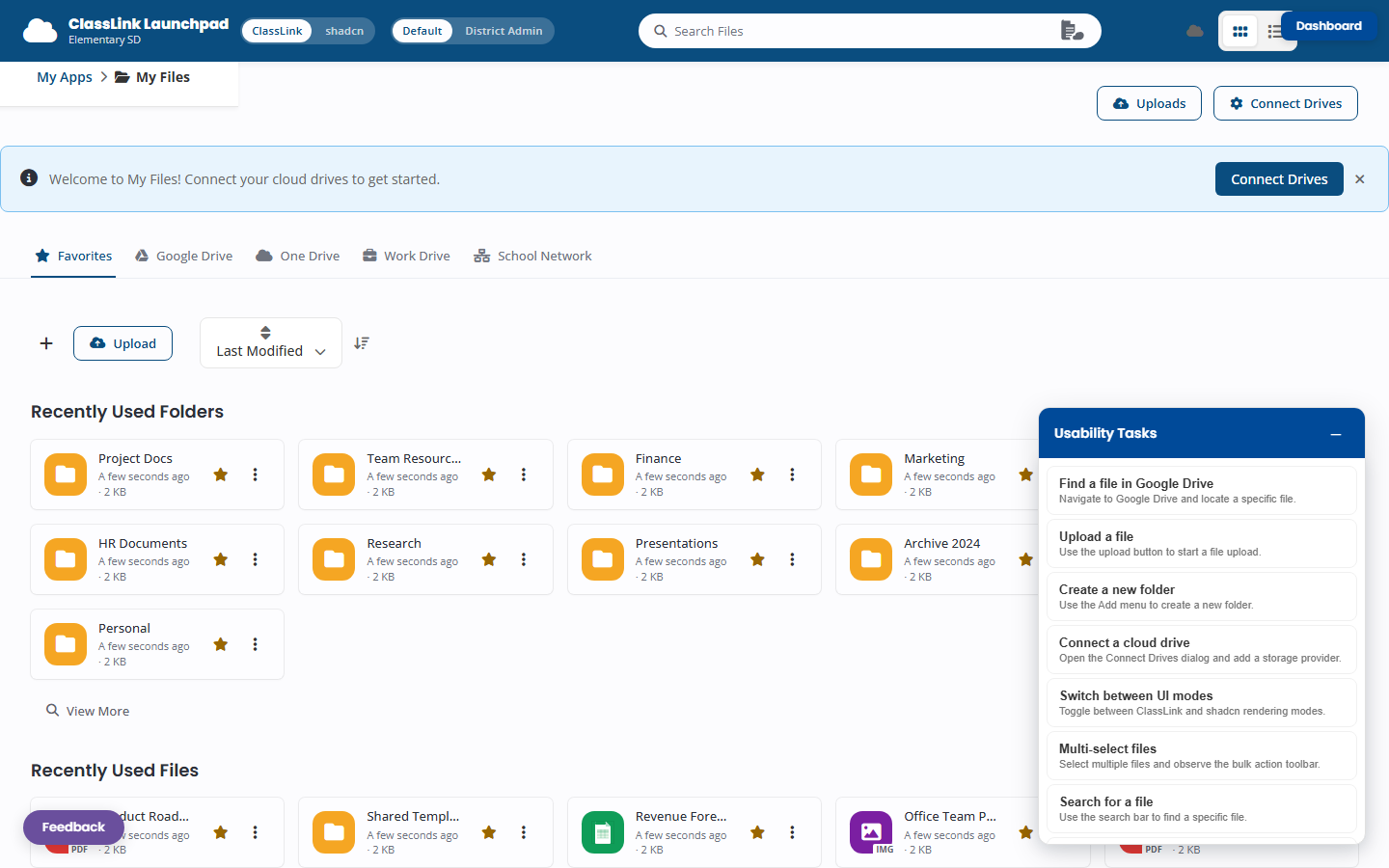
What one task can tell us
The task panel above includes “Find a file in Google Drive.” For a touch scenario like Sofia’s shared iPad, the archived Playwright account specifies visibility and a configured 44 px touch-target check. The matching test source remains to inspect. A flagged target would give me a specific control to inspect and retest before a moderated session.
For Amara’s screen-reader scenario, the harness inspects labels and roles in the page. I would verify announcement order and focus behavior in a live assistive technology session. These examples describe intended checks in the archived account.
Problem
I wanted research tasks to run against the same My Files prototype used for design and development. I built a thin observation layer around it to record task progress, clicks, and feedback without maintaining a separate research version of the interface.
I added synthetic persona walkthroughs to flag issues such as undersized click targets before moderated sessions.
Design choices
- Keep the task in context. A participant panel provides instructions and feedback beside the actual file interface.
- Separate participant and reviewer views. The internal dashboard exposes session tools; the participant mode shows task guidance; clean mode leaves only the prototype.
- Make barriers inspectable. Automated checks attach screenshots and findings to a task and device scenario, so a flagged control can be inspected before a moderated session.
The trade-off is maintaining the instrumentation alongside the prototype. Local storage also limits the current harness; remote collection and session replay are not complete.
Evidence and next steps
- Evidence so far
- The portfolio records a harness design, task flows, and intended event and barrier checks. The matching implementation, raw sessions, and runnable test results were unavailable during this audit.
- Not yet tested
- Real assistive-technology behaviour, moderated-session outcomes, and whether the harness improves the team's research turnaround.
- Next test
- Run a moderated file-finding task and a live screen-reader session. Compare recorded events with observed behaviour, then publish a finding and the design change it informs.
Archived instrumentation, scenarios, and automation account
The following records the earlier technical account. Hook counts, scenario counts, storage behavior, event bridging, and automated findings remain unverified until the matching source and exports are available.
The harness
my-files-usability runs on port 4303 and embeds the actual my-files-react app at port
4302 through an iframe. Around it sits an instrumentation suite that watches what happens
inside the frame and writes structured events to a local session store.
Three modes, switchable via URL or Ctrl+Shift+T:
?ux-test=admin— internal mode. TestingDashboard visible with four tabs (Launch, Sessions, Feedback, Synthetic). Event log, click density, session export, synthetic test runner.?ux-test=1— participant mode. Task flow panel, post-task feedback widget, element highlights when a step needs guidance. The participant only sees the harness when it has something useful to say.- No flag — clean mode. Iframe only, no harness chrome. For demoing the underlying app.
Ctrl+Shift+T cycles through off → student → internal → off from anywhere in the app. The dashboard panel is draggable — it stays out of the way of whatever you’re testing.
Eight hooks
The instrumentation surface is eight custom hooks, all wired into a single UsabilityTestContext:
| Hook | What it does |
|---|---|
useClickTracker | Records selector, xy coords, element text, session ID, UI mode |
useFeedbackPrompt | Schedules post-task satisfaction prompts at configurable intervals |
useHeatmapRenderer | Paints click density on a canvas overlay |
usePostMessage | Bridges events between the iframe (4302) and the harness (4303) |
useSessionRecorder | Buffers events with timestamps for replay |
useTaskFlow | Drives step-by-step scenarios with persona-aware timeouts and click counting |
useTestStorage | Local persistence so a session survives a refresh |
useDraggable | Lets the TestingDashboard panel be repositioned by dragging |
Events tracked: clicks, navigation, modals, tabs, file/folder ops, search, uploads, context menus, view-mode switches, task progression.
Synthetic persona testing
Six test personas, each with a device, viewport, input method, time multiplier, and a list of concerns that shape how the test evaluates their experience:
| Persona | Context | Device | Input | Time multiplier |
|---|---|---|---|---|
| Jaylen | 4th grader | Chromebook 1366×768 | Touch | 0.8× (rushes) |
| Amara | HS student, JAWS | Windows 1920×1080 | Screen reader | 2.0× (careful) |
| Carlos | Middle schooler, 200% zoom | Windows desktop | Mouse | 1.3× |
| Sofia | 6th grader, shared iPad | iPad 810×1080 portrait | Touch only | 1.0× |
| Ms. Okafor | Teacher, power user | Windows 1920×1080 | Mouse | 0.7× (efficient) |
| Dev (QA) | Internal tester | MacBook 1512×982 | Mouse | 1.0× |
The time multiplier adjusts per-step timeouts. In the documented configuration, a 30-second budget becomes 24 seconds at 0.8× or 60 seconds at 2.0×. Those are authored timing assumptions. Observed participant behavior would be needed to calibrate them.
The recorded scenario examples include student tasks and internal QA tasks:
Student scenarios: find a file in Google Drive, upload a file, create a folder, connect a drive, navigate into a folder and open a file.
Internal QA scenarios: toggle between ClassLink/shadcn UI modes and verify layout, multi-select files with Ctrl+click, search for a file, run a full workflow (upload → create folder → search), toggle dark mode and browse.
Each step carries a targetSelector (data-attribute to query), an instruction, a successEvent type, a hint, and a maxTimeSeconds that gets adjusted by the persona’s time multiplier.
Playwright automation
e2e/synthetic-personas.spec.ts iterates every persona against every applicable scenario. For each step, it evaluates:
- Element visibility — is the target present and visible at the persona’s viewport?
- Accessibility — does the target have an
aria-label,role, and text content? - Click target size — bounding box ≥ 24px minimum, 44px for touch personas (Sofia, Jaylen)
- Viewport adjustment — Carlos’s tests run at effective 960×540 (2× zoom), Sofia’s in portrait
Each step produces a screenshot at e2e/results/screenshots/{persona}/{scenario}--{step}.png. The full run generates a barrier matrix — scenarios down the side, personas across the top, verdict in each cell: ✓ pass, ⚠ warning, ✗ fail, ? unclear.
Two npm scripts: test:synthetic for headless CI, test:synthetic:ui for interactive debugging.
The dashboard
The TestingDashboard component is a collapsible, draggable panel (internal mode only) with four tabs:
- Launch — select a persona, pick a scenario, start the task flow. Scenarios are filtered by role — student personas see student tasks, QA sees internal tasks.
- Sessions — event count, stored session count, export to JSON, clear data.
- Feedback — post-task satisfaction responses collected during moderated sessions.
- Synthetic — the results tab. Run a synthetic walk manually, see progress, then review the report.
The Synthetic tab’s report shows:
- Barrier matrix — verdict grid across scenarios × personas with
✓ ⚠ ✗ ?icons - Findings — per-step issues with severity (Critical / Major / Minor), persona affected, description, reason, and suggested fix
- Recommendation — ship, fix and re-test, or rethink the flow for a specific persona
Reports persist in localStorage (up to 10) via src/lib/synthetic-test-runner.ts. The runner iterates personas and scenarios, builds a SyntheticTestReport with findings, barrier matrix, summary, and recommendation — all fully typed in src/types/synthetic.ts.
What the checks can and cannot tell us
The documented checks are intended to flag a small target or missing label before a session. Their execution remains to verify with the matching harness source. It cannot establish whether a student understands the task or whether a screen reader announces the flow correctly. Those questions still require observed use and actual assistive technology. The exported event log and barrier matrix support that review; they do not replace it.
What I’d do differently
- No real session-replay yet.
useSessionRecorderbuffers events but the playback layer isn’t built. Reading a JSON event log is not the same as watching the cursor move. - No remote storage. Sessions write to localStorage. Fine for moderated testing in the
same room; useless for unmoderated. A thin Supabase or Firestore adapter behind
useTestStorageis the obvious unlock. - Heatmap canvas is global. Should be per-route. Currently a click on the dashboard contributes to the same heat as a click on the file list — the rendering masks where the density actually concentrates.
- Playwright tests don’t exercise actual assistive technology. Amara’s persona evaluates what a screen reader would announce based on ARIA attributes, but it doesn’t run NVDA or VoiceOver. The synthetic walk catches missing labels and roles; it doesn’t catch announcement ordering or focus-trap behavior that only a real AT exposes.
Verification update
On November 18, 2026, the matching My Files harness and embedded app were unavailable in the accessible project folders, and the documented local ports had no running service. The existing screenshot establishes the appearance of a task panel at capture time.
Event capture, session persistence, iframe messaging, barrier reports, and exports need an execution check with the matching source. A moderated study and live assistive-technology sessions are required for claims about task understanding, announcement order, or user improvement.